TABLE OF CONTENTS
Summary
This article is aimed at MyConcern admin users, who are responsible for managing features of MyConcern, in this case locations of concerns.
Locations are an important data point as they record where an incident occurred. This is useful for reports and in any cases where a third party may be involved in the management of a concern.
To get to this feature you need Account admin permissions. Go to Admin, Concerns, Location Management (click edit)
How to manage locations
- To enable the locations feature for concerns, the toggle will need to be switched to On and you need to click Save to confirm this change.
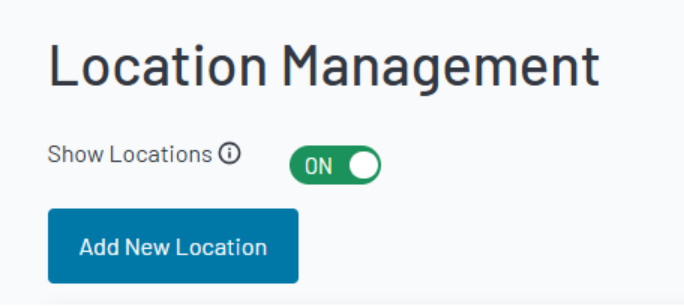
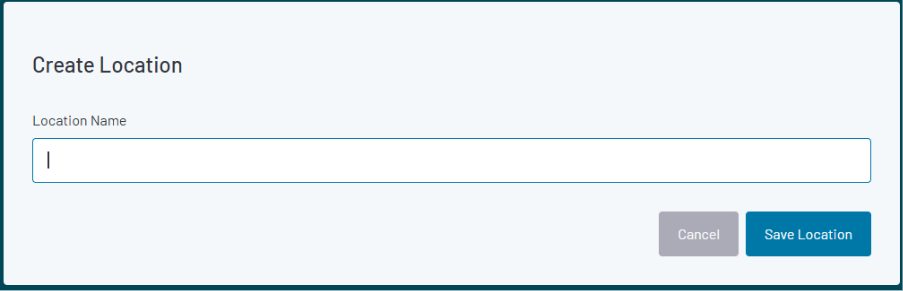
- To create a list of locations relevant to your school, click Add New Location, which will trigger the pop up below. Enter the name of a location, for example 'Playground' and click Save Location
Concern sub location management
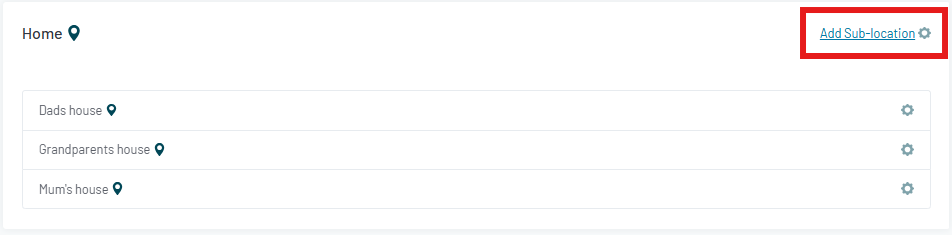
There is also the option of creating 'Sub-Locations', which can branch off the initial locations list you have created. For example, you may have a location for Science Block, and the sub location list could detail the classrooms within that location. The same applies to external locations such as Home, this could be used to specify whether it is Dad's house or Mum's house.
Go to Admin, Concerns, Location Management (click edit)
- To add sub-locations, click Add Sub-location above any main location.
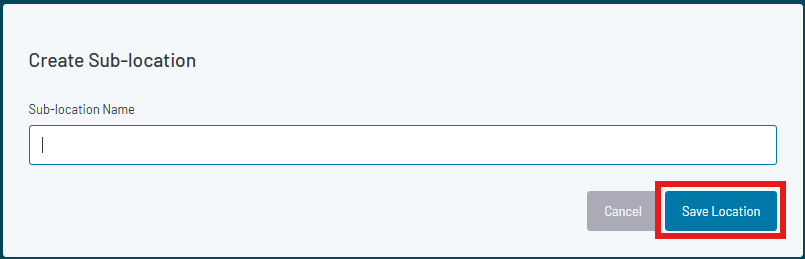
- Enter the name of the sub-location in the pop-up window and click Save location
Archiving locations & sub-locations
If there are any ‘Locations’ or ‘Sub-locations’ you no longer wish to use, you can ‘archive’ them, so that they no longer appear as an option to assign to your concerns.
To archive a ‘Location’ or a ‘Sub-location’, please take the following steps:
- Go to Admin, Concerns, Location Management (click edit)
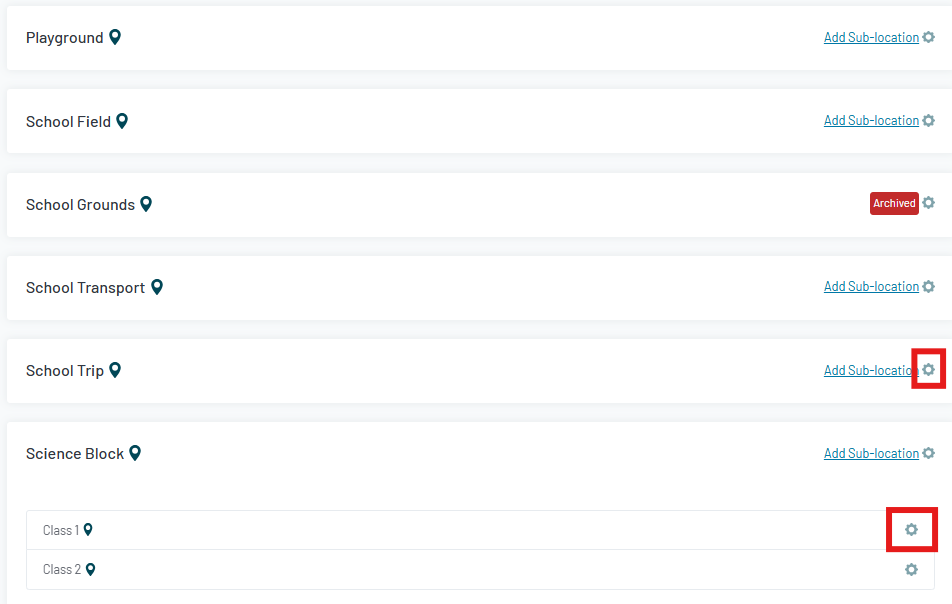
- The cog symbol on the right-hand side of the Locations/Sub-locations list, will allow you to edit or archive the location
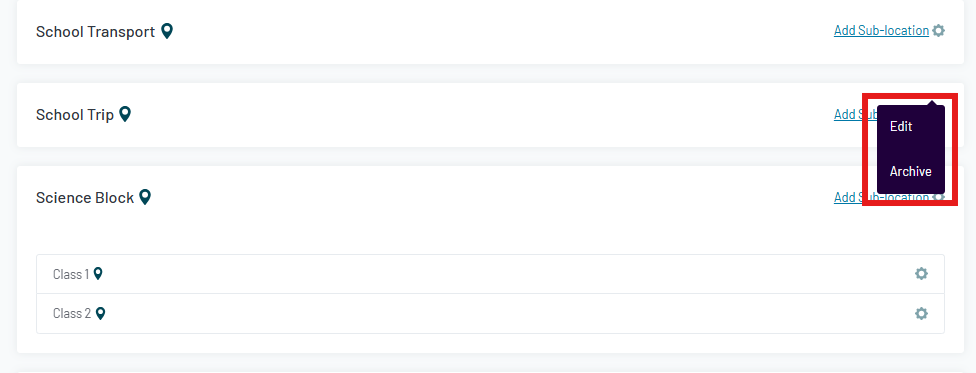
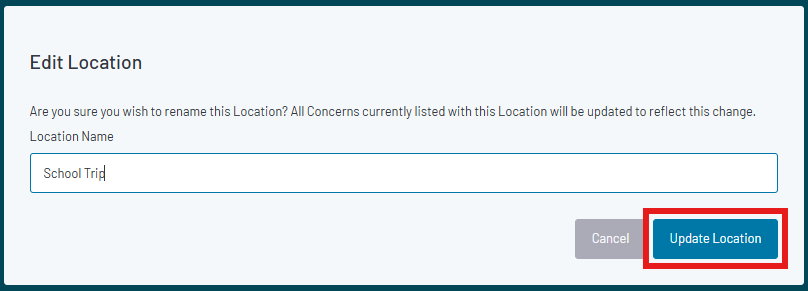
- If you chose to Edit, the following will pop-up. Click Update Location to save changes
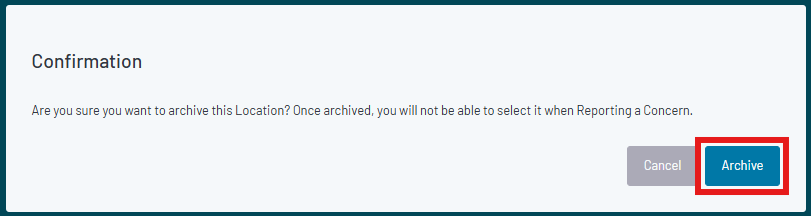
- If you are archiving, then the pop-up will be as shown. Click Archive to complete the action
Once you have created your locations and sublocations these will be available when you next report a concern. You can also change the location on a concern - LINK
Was this article helpful?
That’s Great!
Thank you for your feedback
Sorry! We couldn't be helpful
Thank you for your feedback
Feedback sent
We appreciate your effort and will try to fix the article