If you would like to add an extra layer of security to your MyConcern account, you can set up Two-Factor Authentication (2FA) which will require you to enter a code which will be provided by an authentication app on your mobile device.
This article will guide you through how to set up 2FA on your mobile device via either the Google authenticator app or Microsoft authenticator app.
How to set up two factor authentication
Step 1:
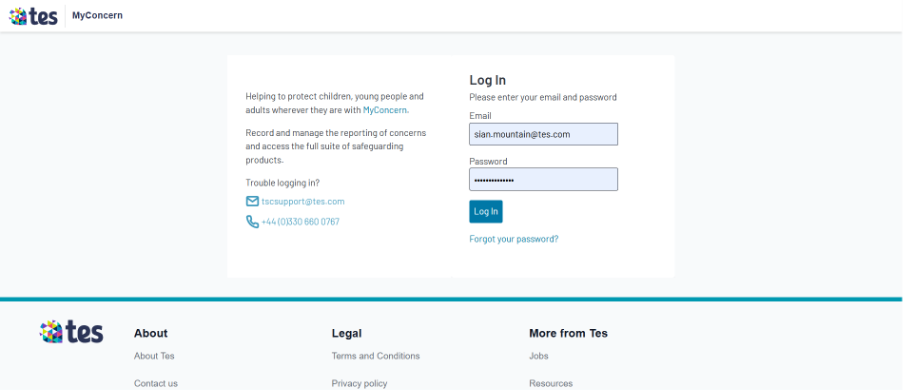
Log in to MyConcern
Step 2:
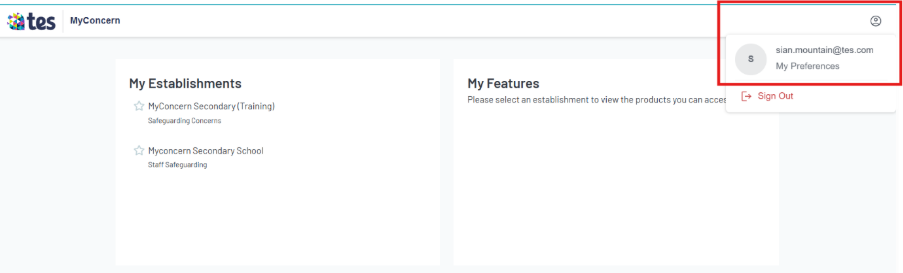
You will then be taken to the portal screen, where you will need to click on the person icon in the top right corner and click onto ‘My preferences’ from the drop-down.
Step 3:
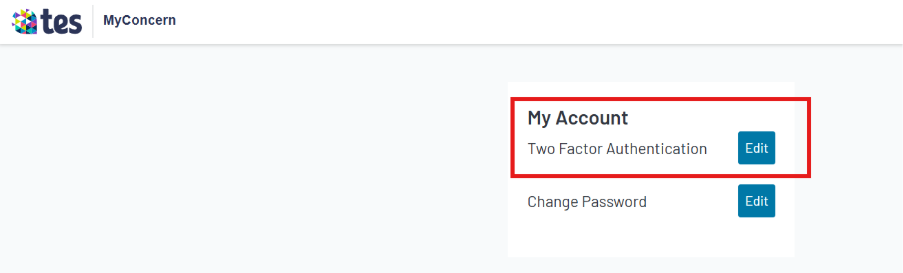
Click onto ‘Edit’ next to Two Factor Authentication.
Step 4:
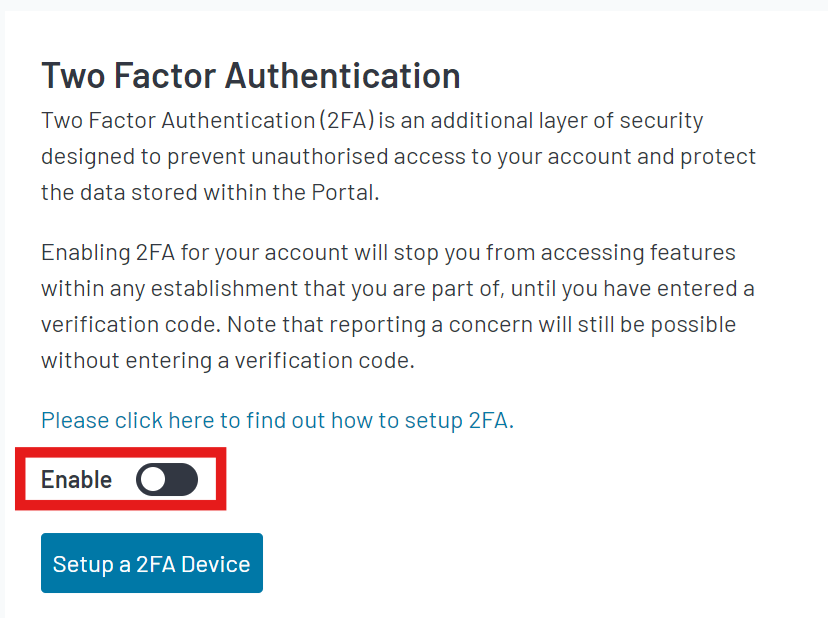
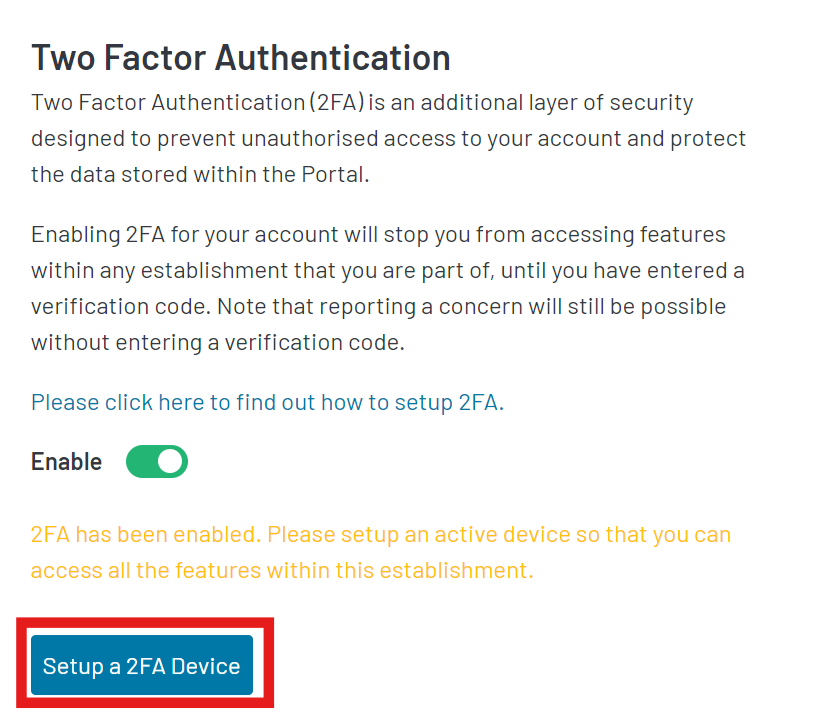
First, you will need to enable 2FA for your account by clicking the below button.
Step 5:
Click the blue ‘Setup a 2FA Device’ button.
Step 6:
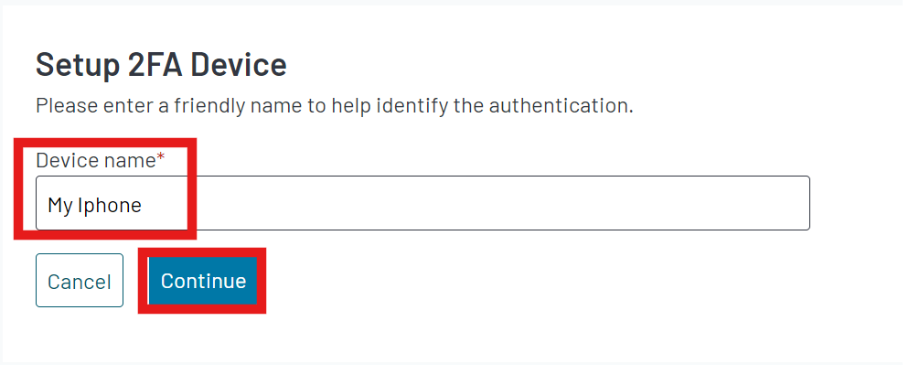
Type in your device name. For example, ‘My iPhone’ and click continue.
Step 7:
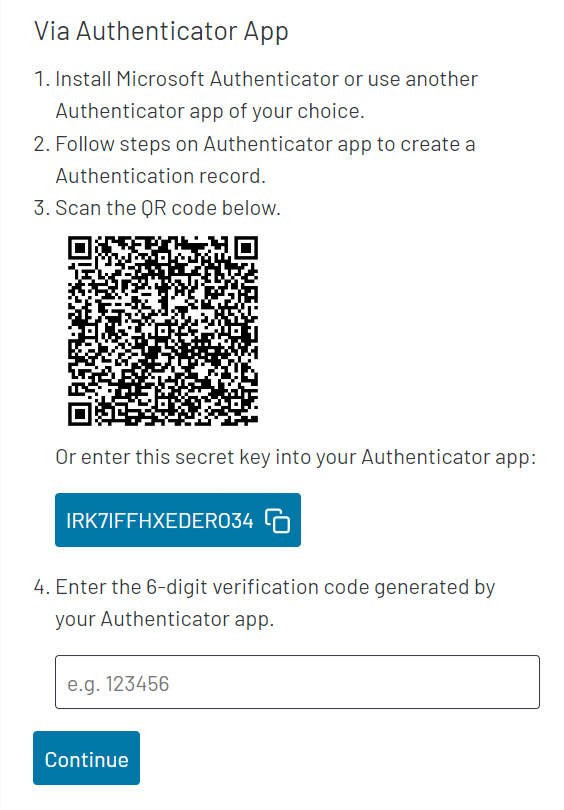
At this stage, you will need to download the Microsoft or Google authenticator app onto your mobile device. You can do this by accessing your app store and downloading the required app.
Once downloaded, you will have the option to click a plus button to scan the QR code which has appeared within your portal.
Step 8:
The Authenticator app will then provide a code for you to enter into the portal. Enter the code and select continue. 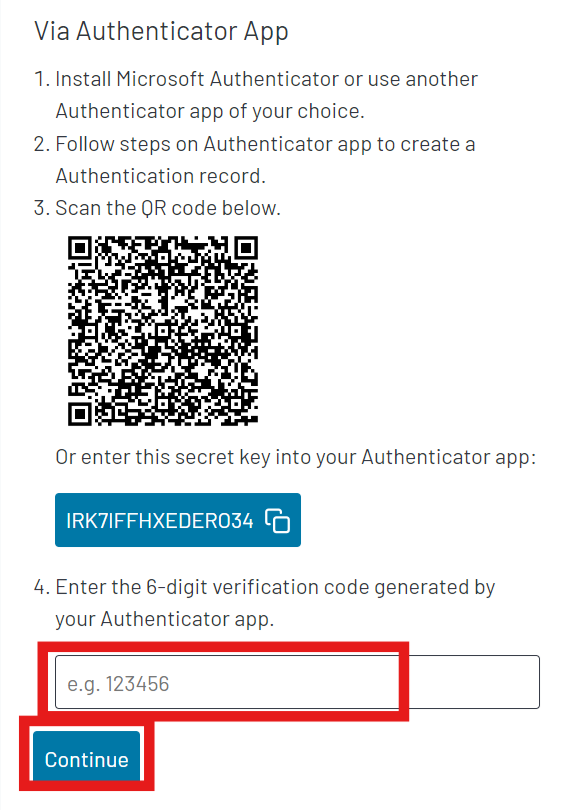
Step 9:
You can then log into MyConcern as you normally would, where you will be asked to enter another authentication code from your authenticator app.
You will be asked to enter a code every time you log in; however, you can also choose to skip this step for 2 weeks.
Was this article helpful?
That’s Great!
Thank you for your feedback
Sorry! We couldn't be helpful
Thank you for your feedback
Feedback sent
We appreciate your effort and will try to fix the article