There is a wide range of categories available; through your admin area, you can create a list from this wider pool that is more relevant to your school setting. These can be used when triaging your concerns.
How to create a category set
To be able to configure your categories you need to have admin permissions. To edit your categories please head to Admin, Concerns(show), Concern Categories (edit)
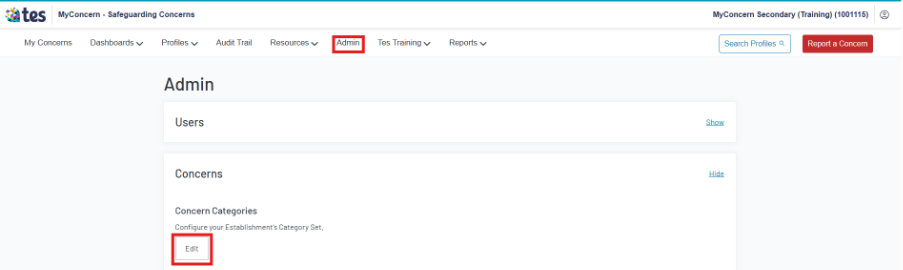
On the left-hand side is the Category Pool, this is a list of the full library of categories available to you in MyConcern. The right-hand side is the Category Set, which is a list of categories chosen from the wider pool for use at your school.
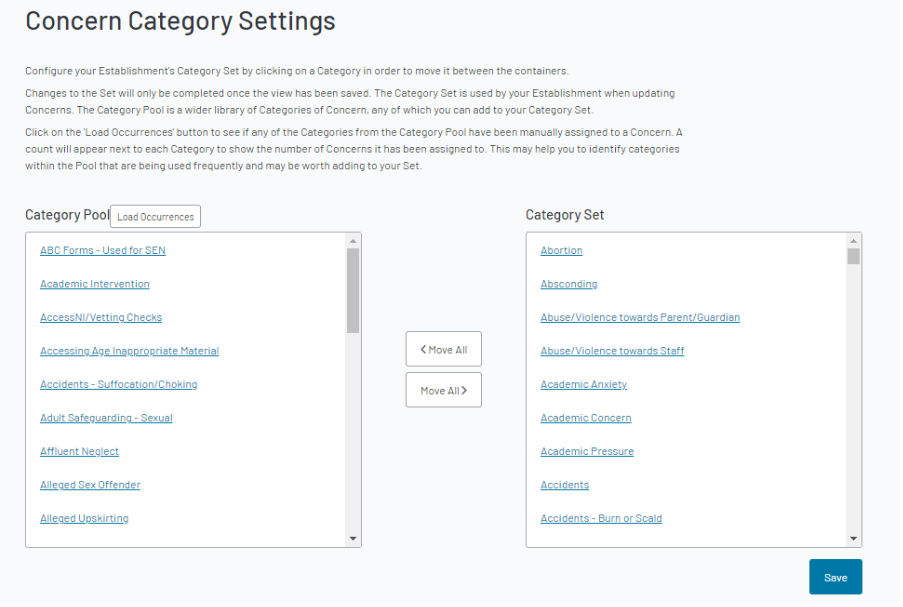
To move a category from the category pool to your category set you can either use the ‘Move All’ option which can be found between the 2 columns or you can scroll through the categories and move individual ones over by clicking on the category you have chosen.
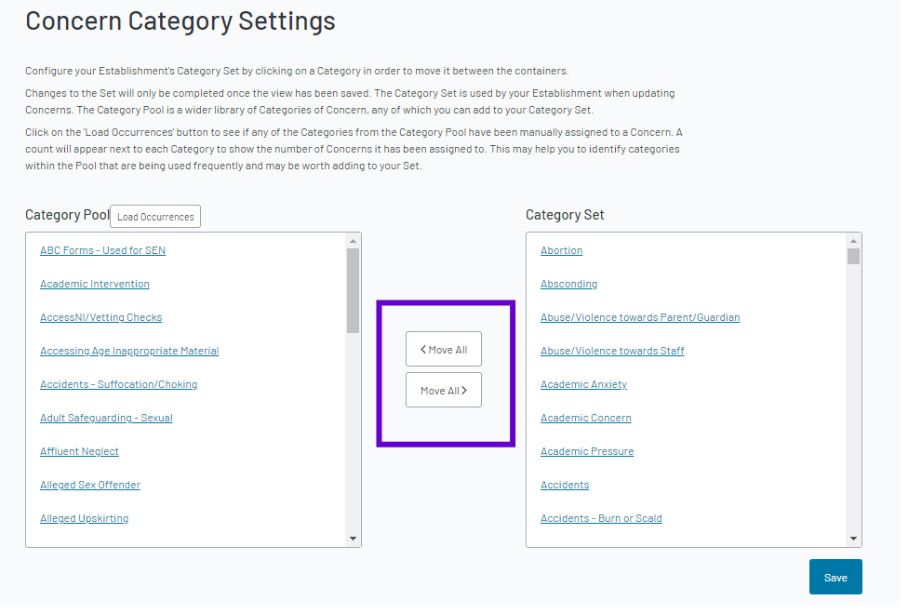
If you accidently move a category over to your category set or change your mind, you can click on the category in your set which will move it back to the category pool.
Once you have finished your list of chosen categories you need to select ‘Save’ at the bottom of the screen.
Helpful Tip
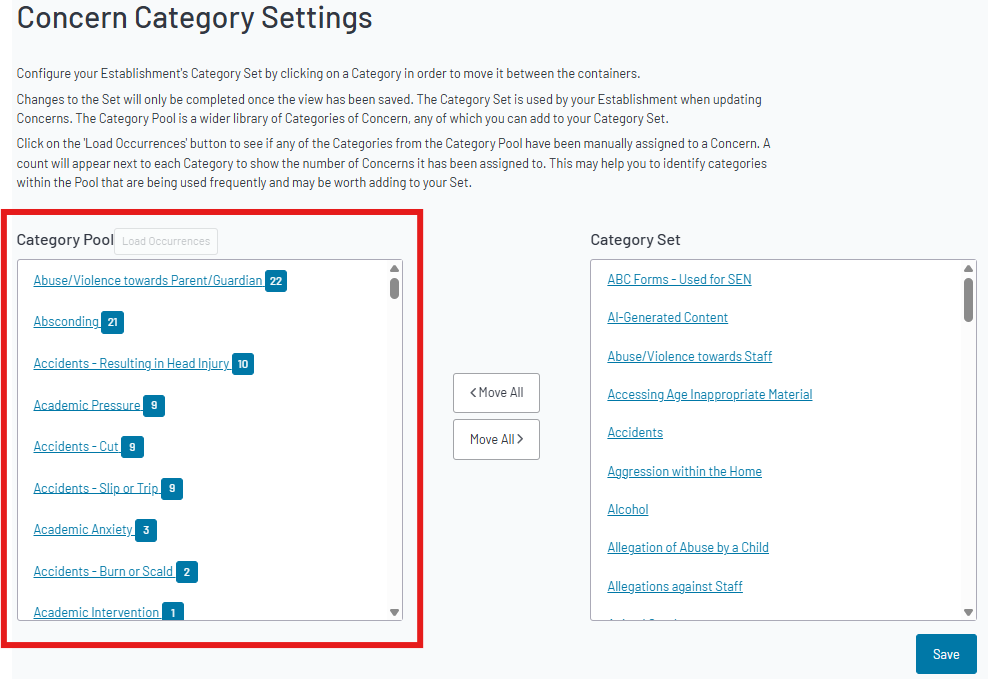
If you are updating your category list and would like to know how often the categories have been used since taking out MyConcern you are able to click ‘Load Occurrences’ which can be found above the Category pool box which will help you identify categories within the pool that are being used more frequently.
Was this article helpful?
That’s Great!
Thank you for your feedback
Sorry! We couldn't be helpful
Thank you for your feedback
Feedback sent
We appreciate your effort and will try to fix the article