TABLE OF CONTENTS
- Summary
- Use case and Prerequisites
- How to add individual users to MyConcern
- Outcome
- Common Issues and Troubleshooting
Summary
This article will explain how to add an individual user to your MyConcern Safeguarding Concerns system.
Use case and Prerequisites
The following information would be useful for a user looking to add new members of staff, so they are able to report safeguarding concerns.
To carry out this action, admin permissions are required and you will need to be logged in to your safeguarding system.
How to add individual users to MyConcern
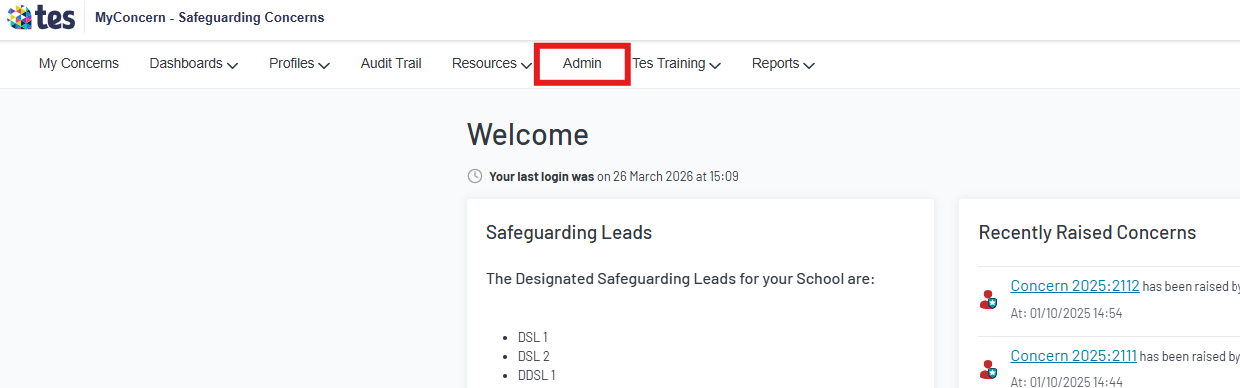
- Click on the Admin tab at the top of the screen.
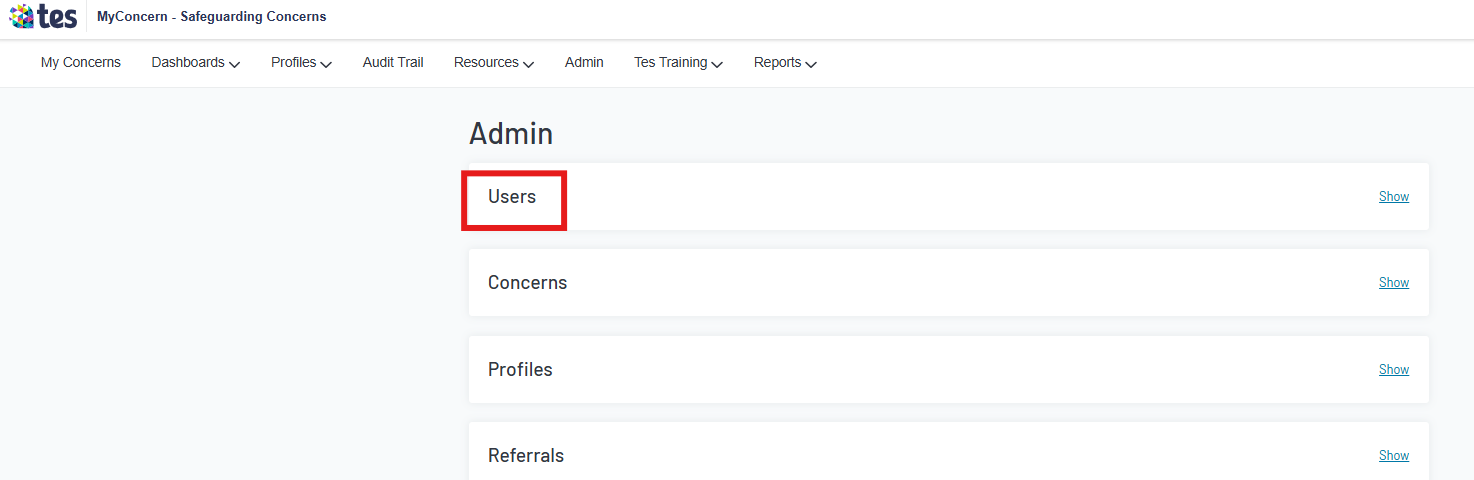
- Click Users to open options.
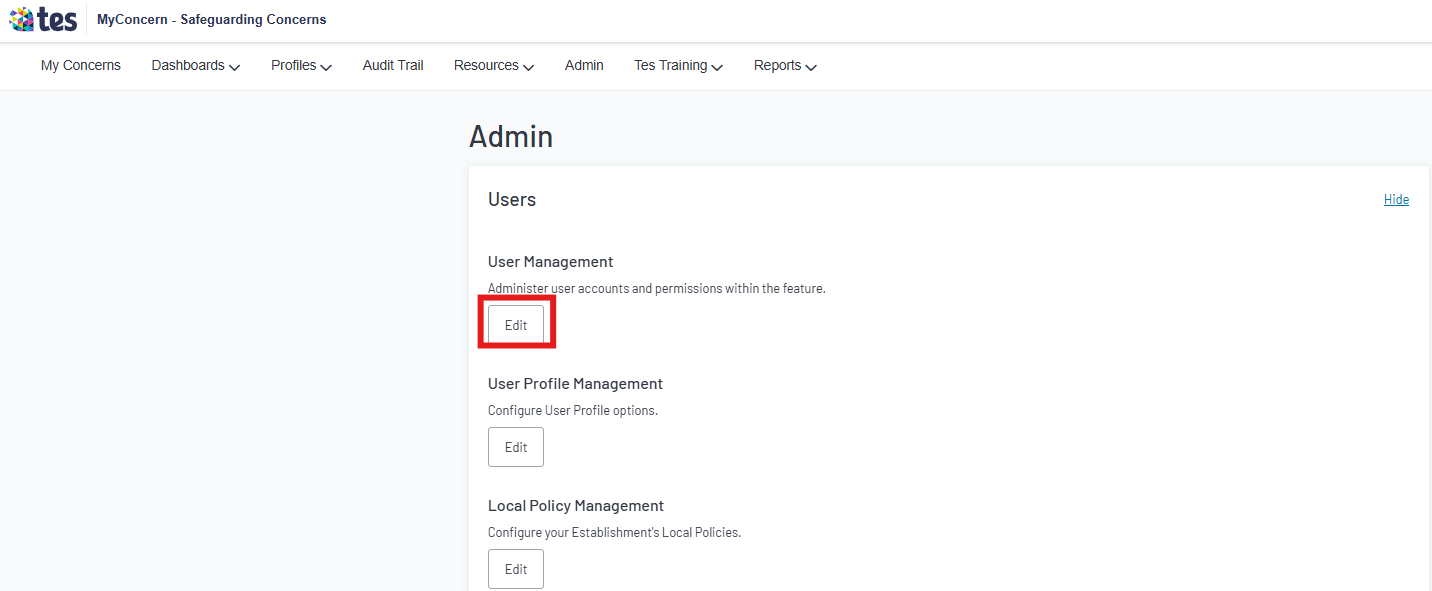
Click Edit under User Management
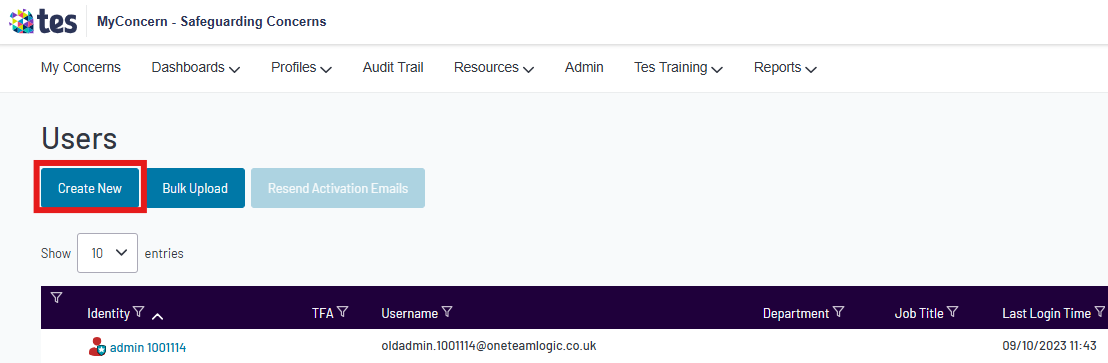
Click on Create New
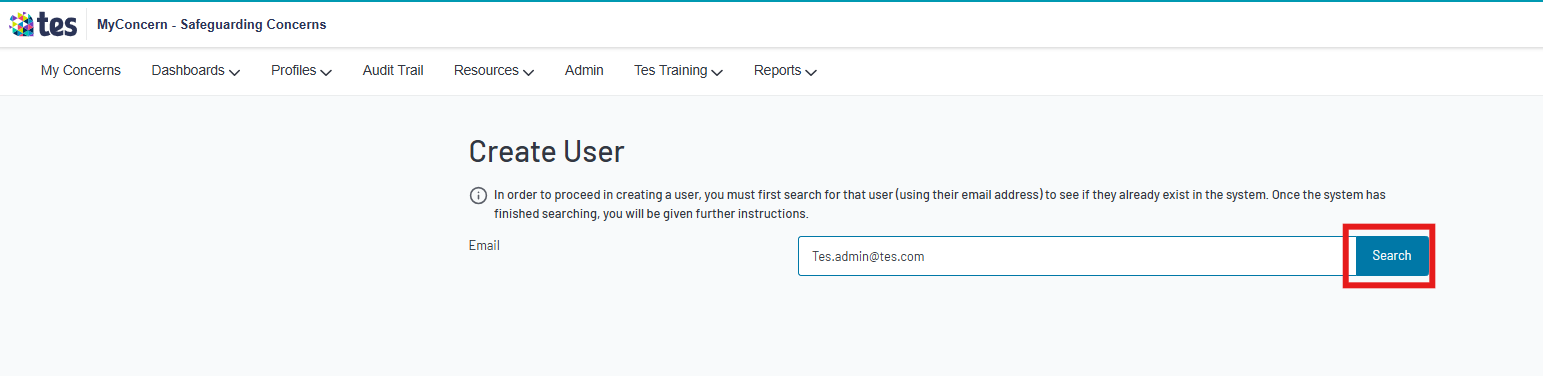
Enter the email address for your new user and click Search
Enter the Forename and Surname for the new user.
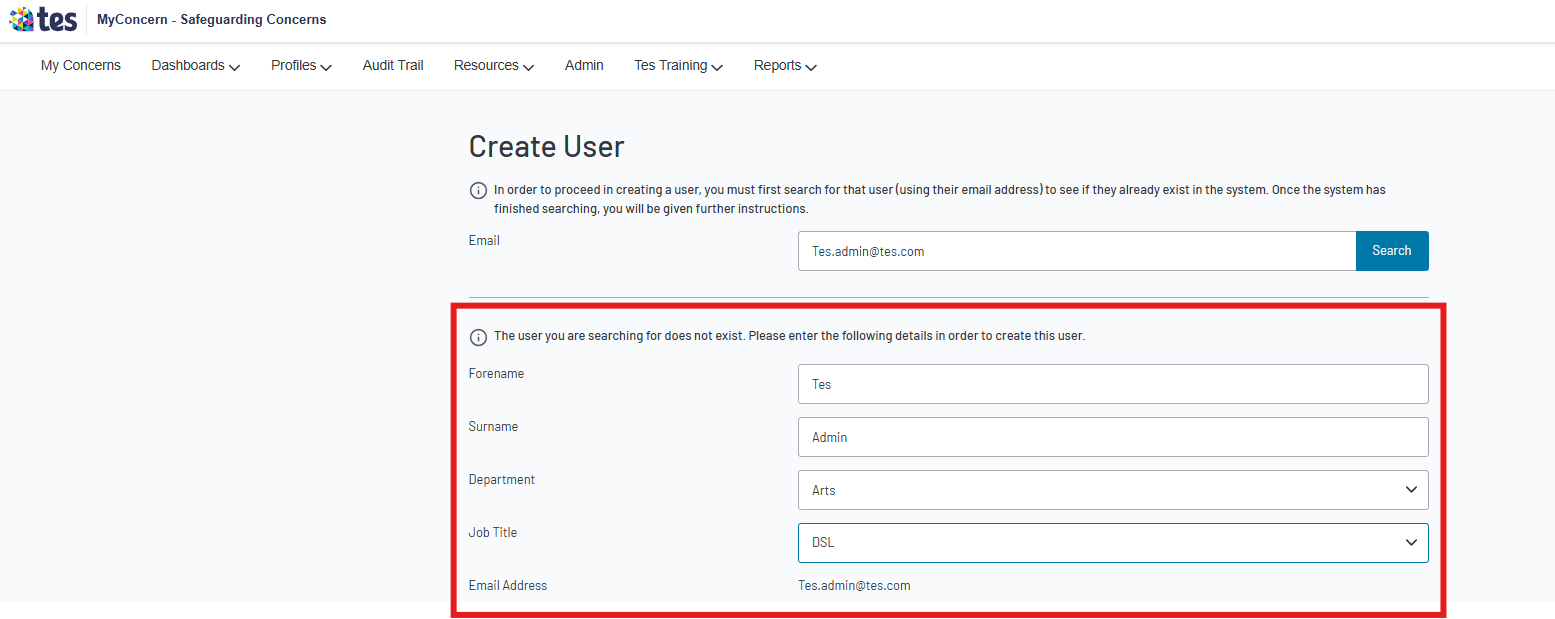
Optional: add a department and job title (dependant on whether these are set up in your admin area – please see for further information)
Note: if the email already exists in the system, you will see the message below and the link will redirect you to that user’s account profile.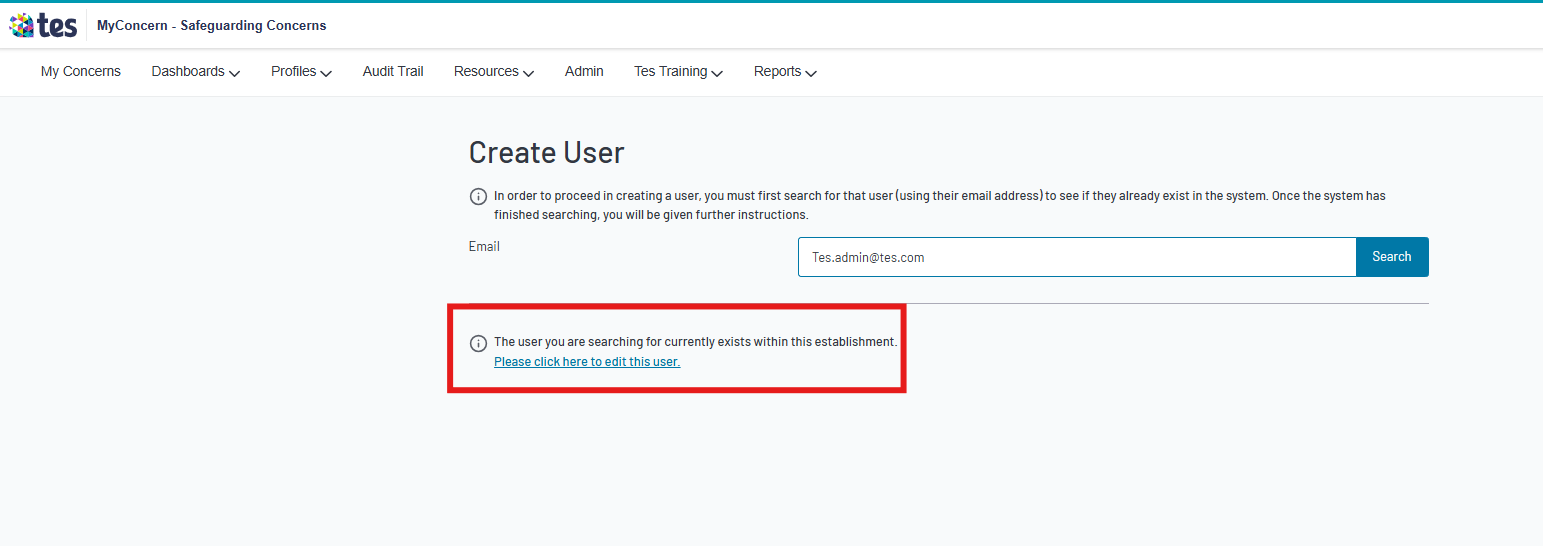
- Select the main Role/permission for this user; DSL, Trusted User, Basic User or None – This will determine the level of access they will have. For further information, please see Link to
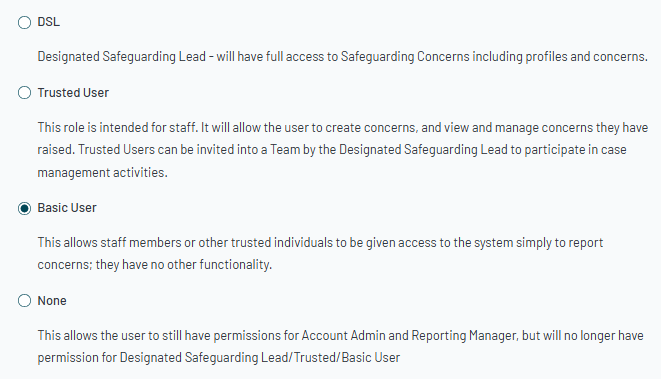
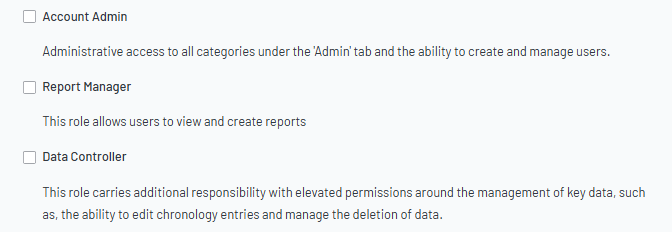
You can also add additional permissions such as: Account Admin, Report Manager and Data Controller. This is optional and not a requirement, please consider the role of the user and the access they will need. Multiple options may be selected.
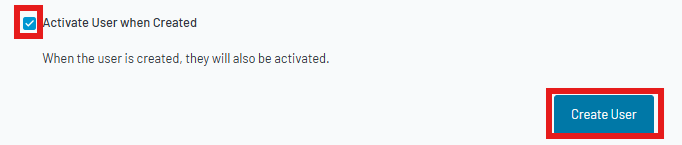
Once the form has been completed, you will need to confirm if you want to Activate user when created. If you tick this box and click Create User, the user will automatically receive an activation email, inviting them to create a password and log in.
Outcome
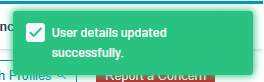
You will know when you have successfully uploaded a new user by the green banner indicating User details updated successfully.
Common Issues and Troubleshooting
- If you are unable to access the admin tab: you may not have the required permissions. Another admin user at your establishment will be able to either follow the steps above or assign you the relevant permissions – Link to How to amend User Permissions.
- The email already exists in the system: If this user already has a MyConcern account at your establishment, follow the link shown in screenshot 6b to view their user profile and review their permissions.
Was this article helpful?
That’s Great!
Thank you for your feedback
Sorry! We couldn't be helpful
Thank you for your feedback
Feedback sent
We appreciate your effort and will try to fix the article